
Slate Engine Examples
Have you ever wondered what you could do with slate? In this blog I show you some examples provided by the engine
Slate
Slate is a framework that the engine is built on. This makes it much easier to extend the editor to make it fit your own personal needs. A quick rundown of Slate is that all Slate widgets start with S. You will see this throughout the examples Epic has provided for us and the engine itself.
Starship Suite
Starship is the UI style they have in use with Unreal Engine 5. This replaced Unreal Engine 4's outdated look.
To view this example suite, Unreal likes to play hide-and-seek with the Starship Suite. In versions before UE 5.3, it was located Tools > Debug > DebugTools. After UE 5.3, it was moved to Unreal Insights, of all places? To find the Starship Test Suite in the source code, the main file is located at UE5/Engine/Source/Runtime/AppFramework/Private/Widgets/Testing/SStarshipSuite.cpp
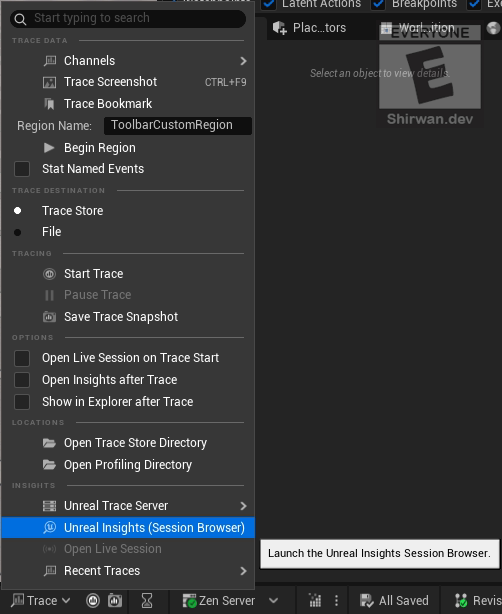
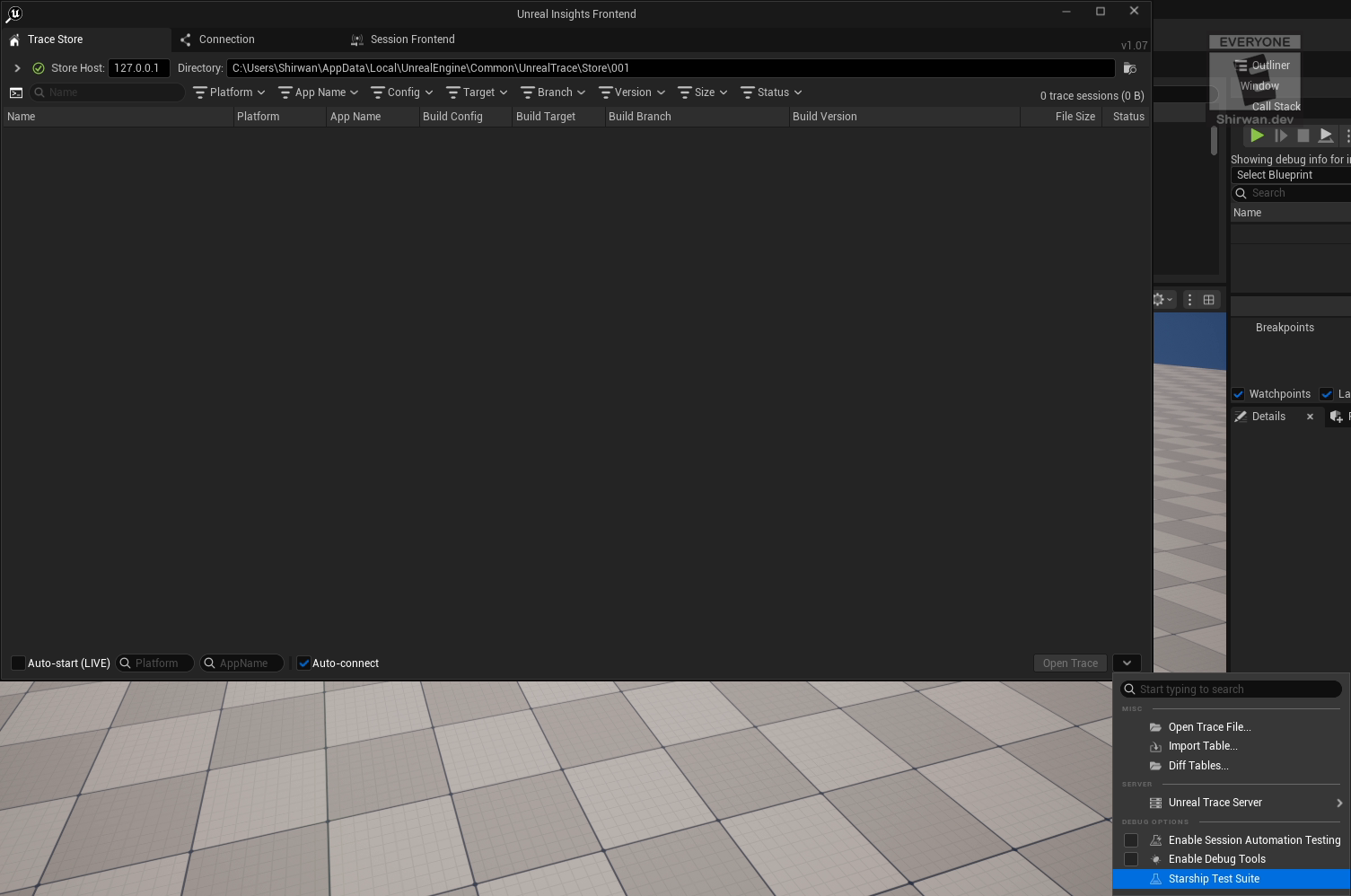
First, you can either open the .exe located at UE5/Engine/Binaries/Win64/UnrealInsights.exe, or open it via an Unreal project. I have shown you how to open it via the Unreal project by clicking on the bottom corner where the trace drop-up is. Now you can access the Starship Suite! It is less feature-rich than the Test Suite from Unreal Engine 4, unfortunately, but it has some nice additions, in part of losing some quality features.
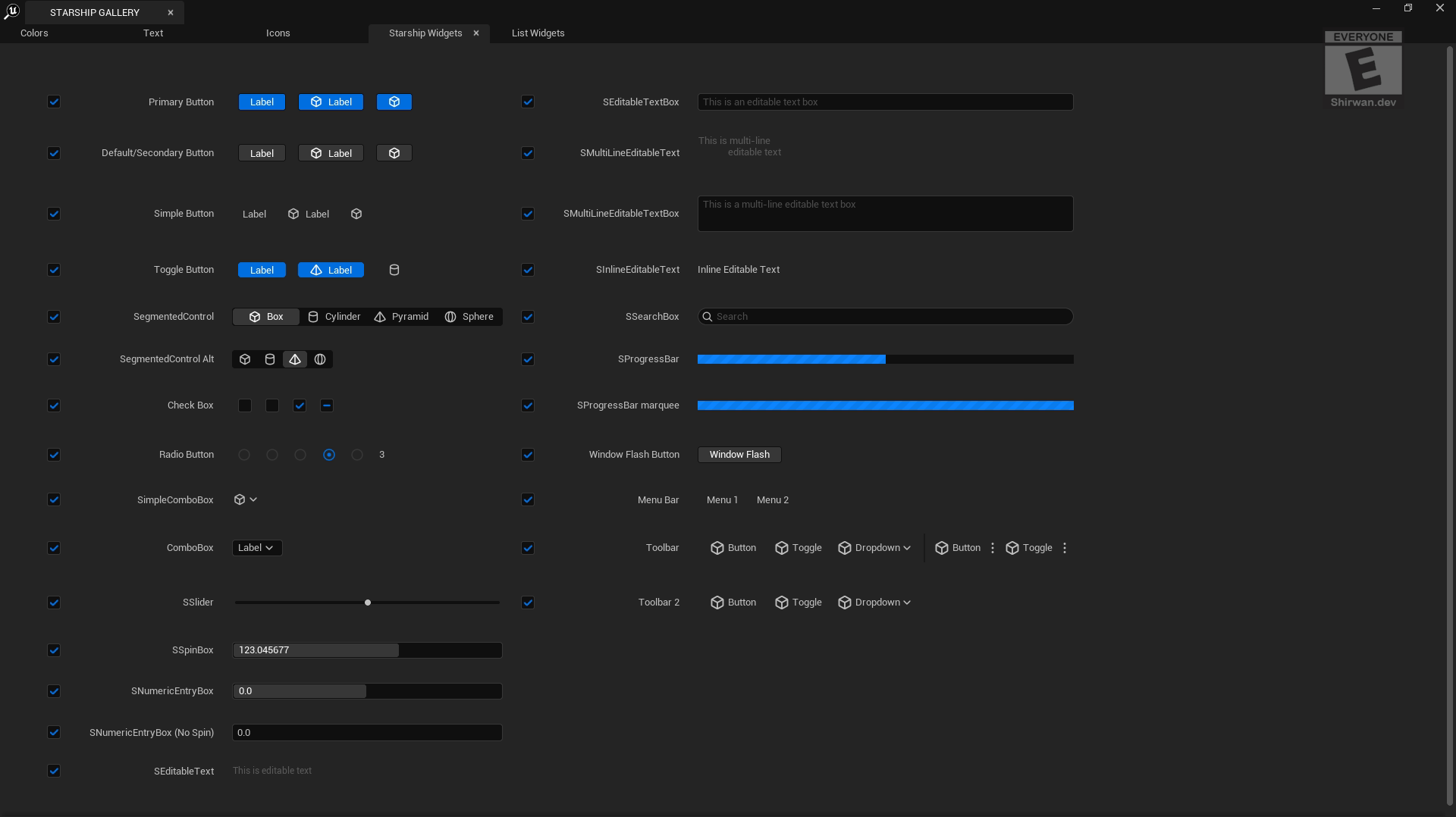
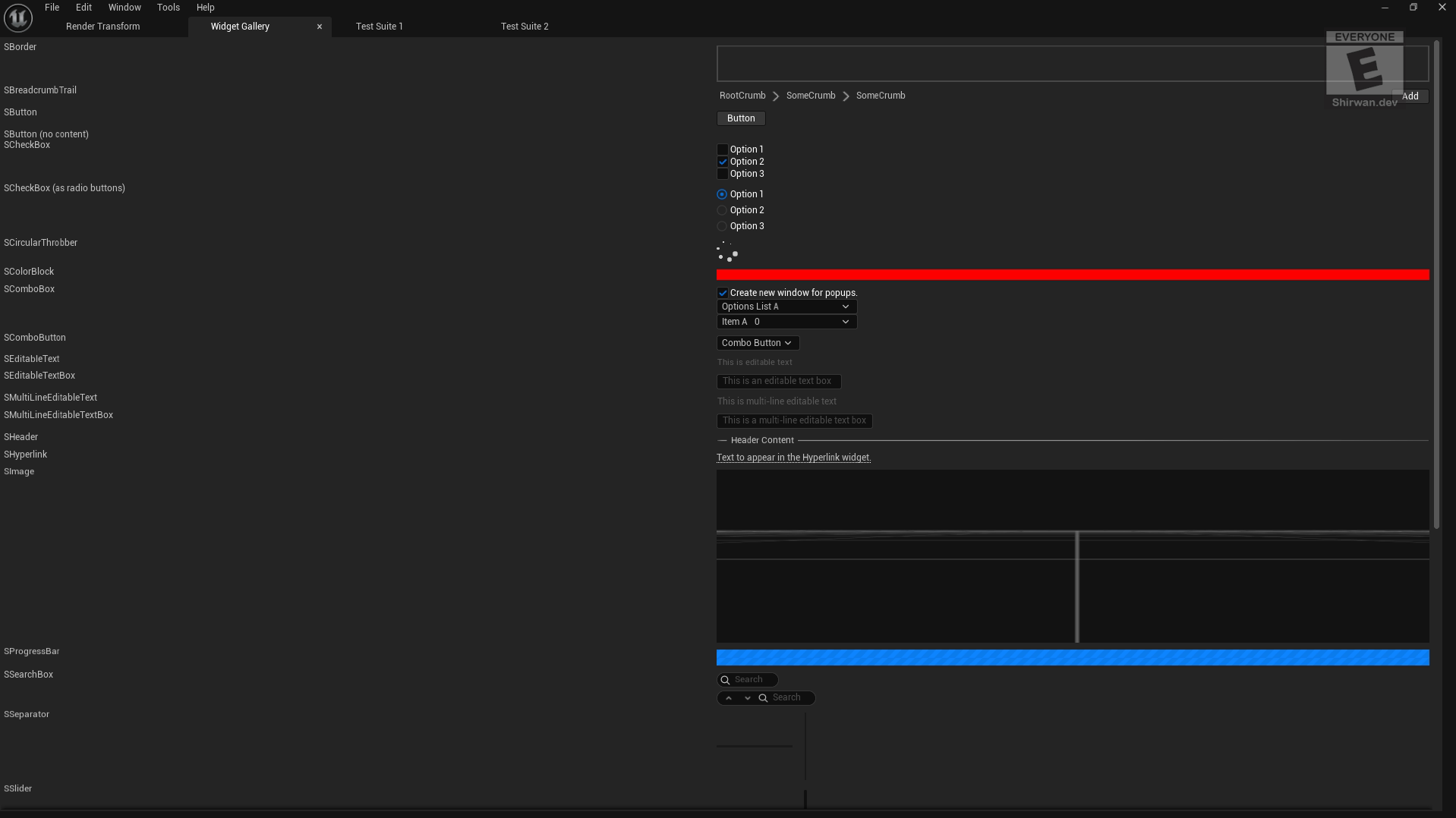
UE5/Engine/Source/Runtime/AppFramework/Private/Framework/Testing/SStarshipGallery.cpp Line 716
Here you get shown a lovely collection of slate widgets that you can utilise inside your own slate UI. It ranges from input fields to some nice radio buttons. All these are visible in the files that are loaded by the SStarshipSuite.cpp
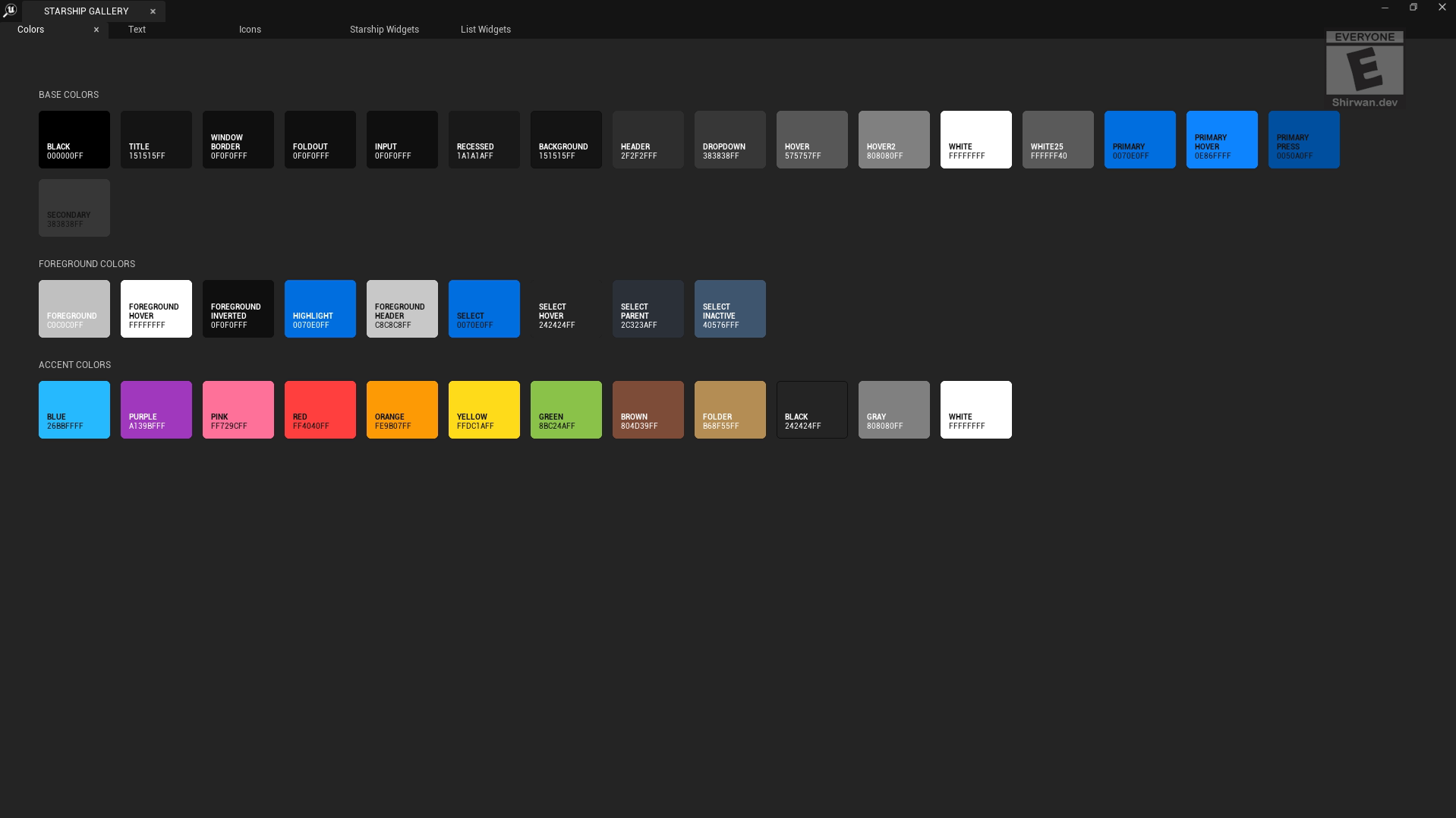
UE5/Engine/Source/Runtime/AppFramework/Private/Framework/Testing/SStarshipGallery.cpp Line 219
This tab doesn't do much, but it does provide some good backend information on how to generate modular slate widgets with a small function. It is also quite nice to view the Unreal-style colours.
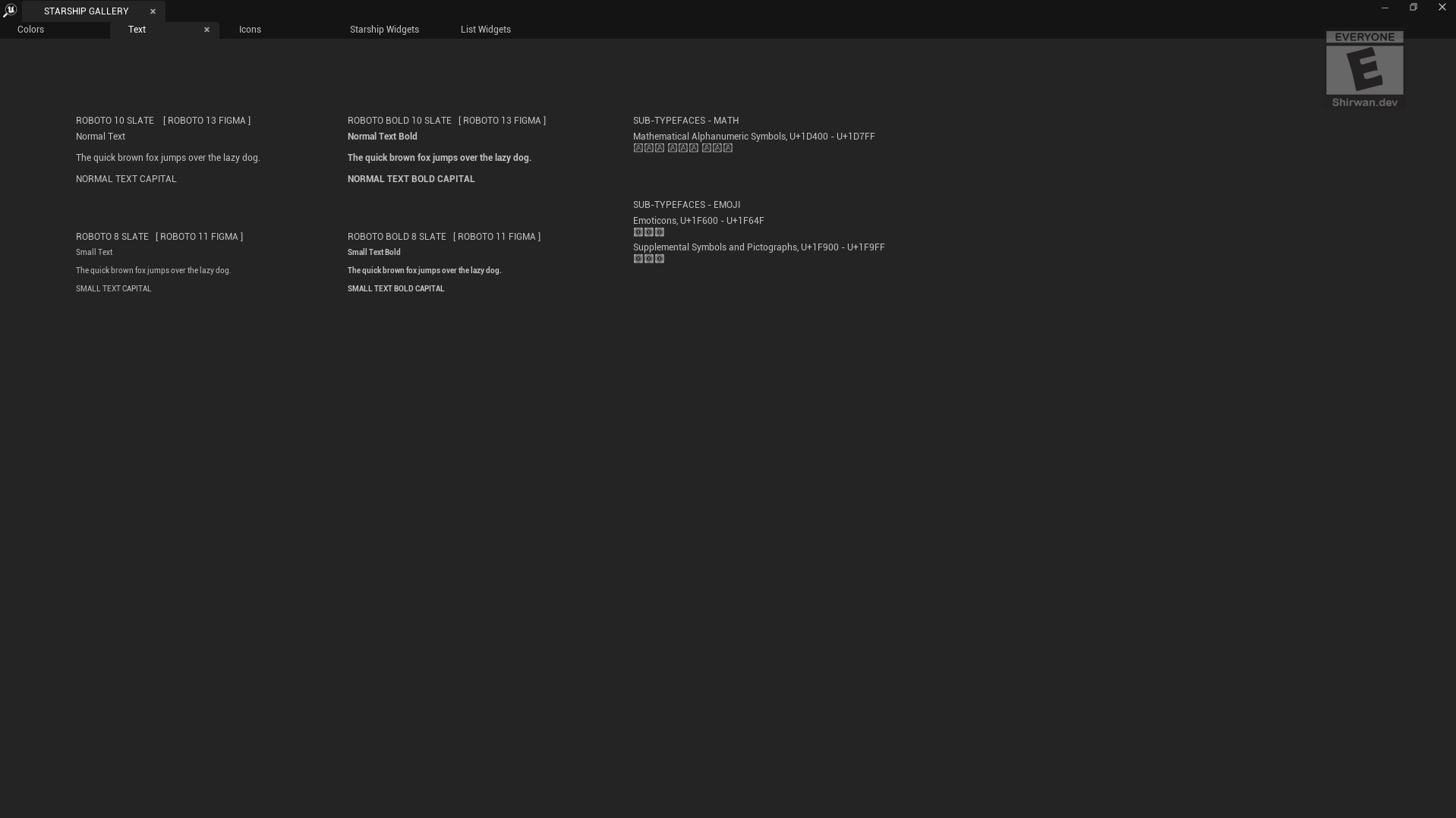
UE5/Engine/Source/Runtime/AppFramework/Private/Framework/Testing/SStarshipGallery.cpp Line 519
This tab is also quite minimal; it shows using different fonts in Slate.
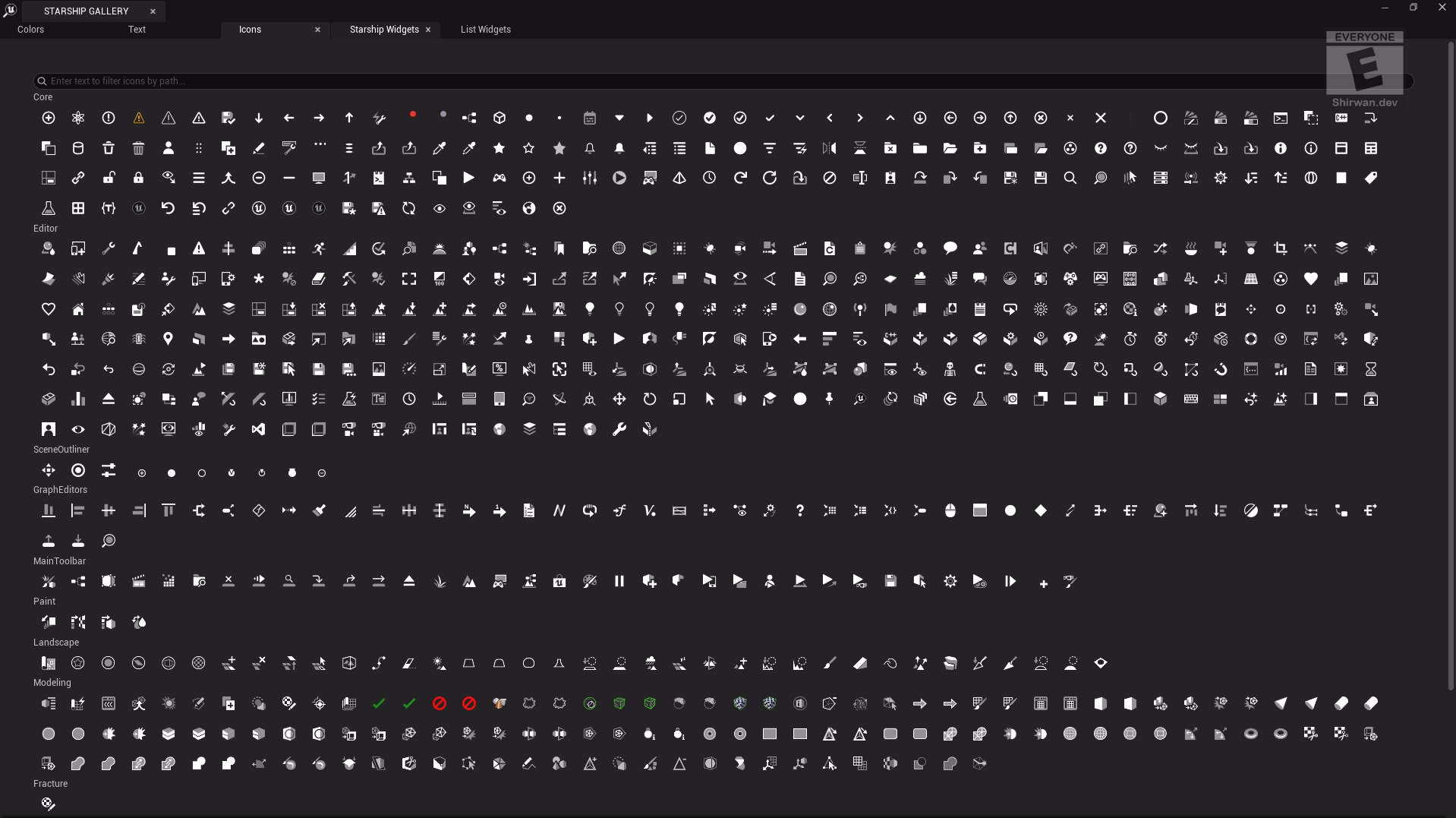
UE5/Engine/Source/Runtime/AppFramework/Private/Framework/Testing/SStarshipGallery.cpp Line 394
This tab shows some icons available in the content folder of the engine. There are some more if you want to go view them, but this is mainly to see how you load an icon from that path.
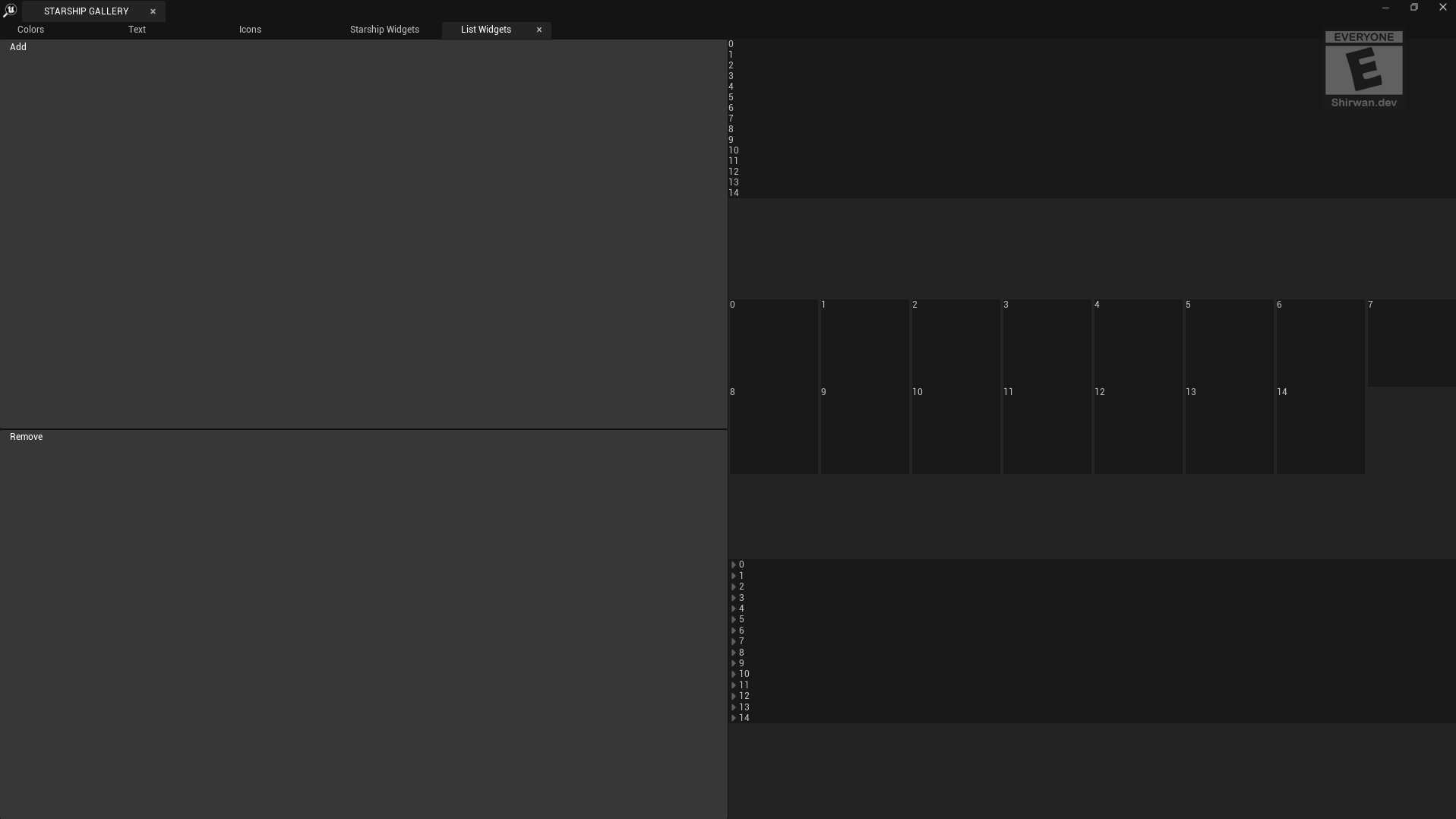
UE5/Engine/Source/Runtime/AppFramework/Private/Framework/Testing/SStarshipGallery.cpp Line 1642
This tab is a great showcase of different list views, such as List, Tile and Tree views. This is a great way to learn how to do this in Slate.
Old Test Suite
This suite is a bit more annoying. To start this, you need to use a command-line argument when launching the editor. You can build it yourself if you have the source code downloaded, but if you want an easier time, you can just use the -SlateDebug command line argument. To find this old test suite in the source code, the main file is located at EngineFolder/Engine/Source/Runtime/AppFramework/Private/Widgets/Testing/STestSuite.cpp
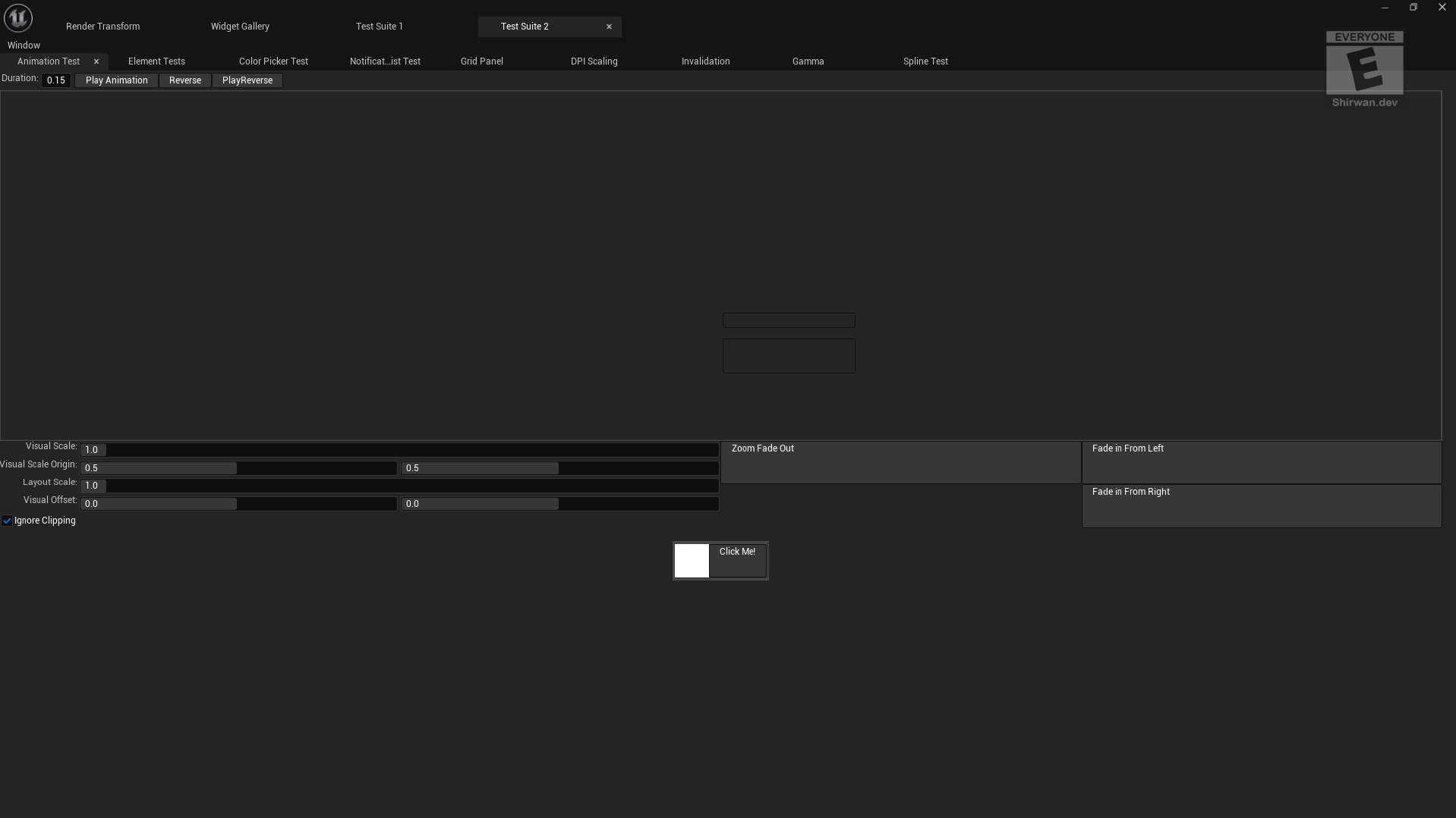
UE5/Engine/Source/Runtime/AppFramework/Private/Widgets/Testing/STestSuite.cpp Line 6380
UE5/Engine/Source/Runtime/AppFramework/Private/Framework/Testing/SWidgetGallery.cpp Line 1327
This tab shows some neat animation in Slate? Cool. It uses a FCurveAnimation, which allows for slate animation, as UMG animation would not work here. If you want, you can add a slate widget in UMG and animate it there, but all slate UI with animation is pretty neat.
My personal favourite of this old test suite is that you can test out notifications and see how they are created. But it does contain a list of tabs you can mess around with, and with the source code from GitHub or your own downloaded copy, you can see how it works.
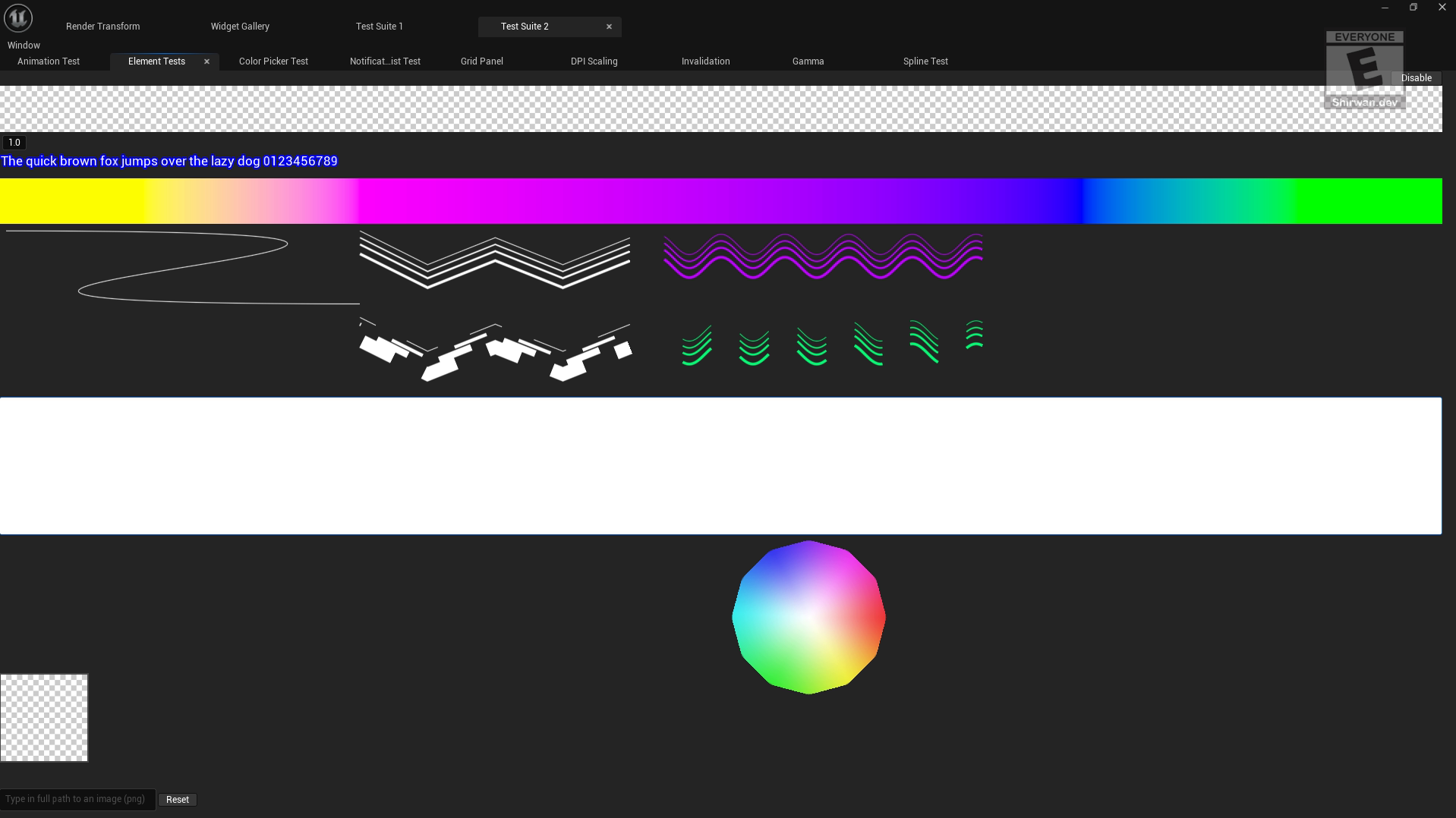
This tab has a lot of custom elements, such as testing out text, splines and materials. This uses custom paint widgets with paint handlers that can be bound and paint custom primitives.
UE5/Engine/Source/Runtime/AppFramework/Private/Widgets/Testing/STestSuite.cpp Line 6470
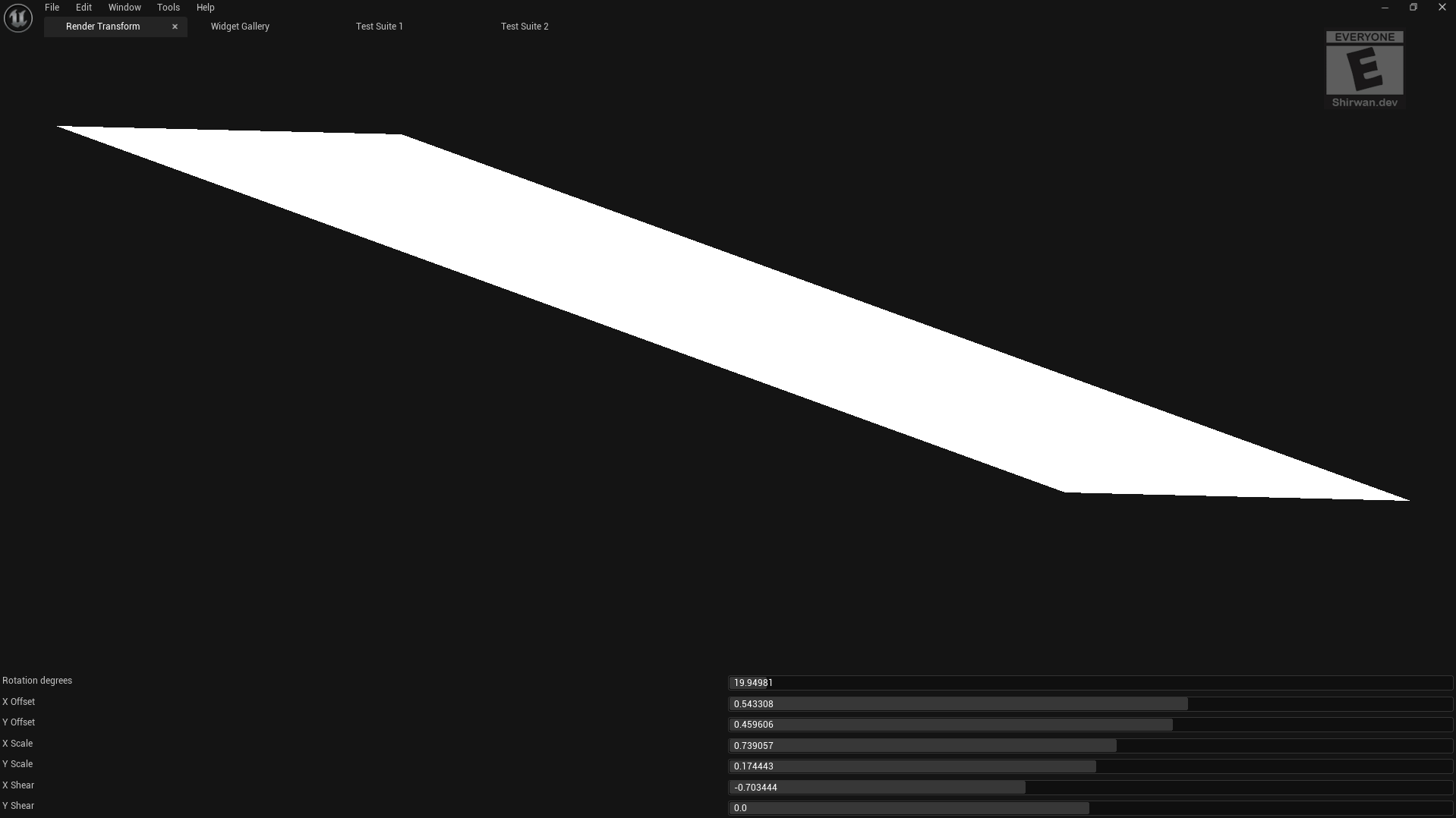
If you want a bit of fun, you can change the render transform of the whole suite with the first tab named 'Render Transform'
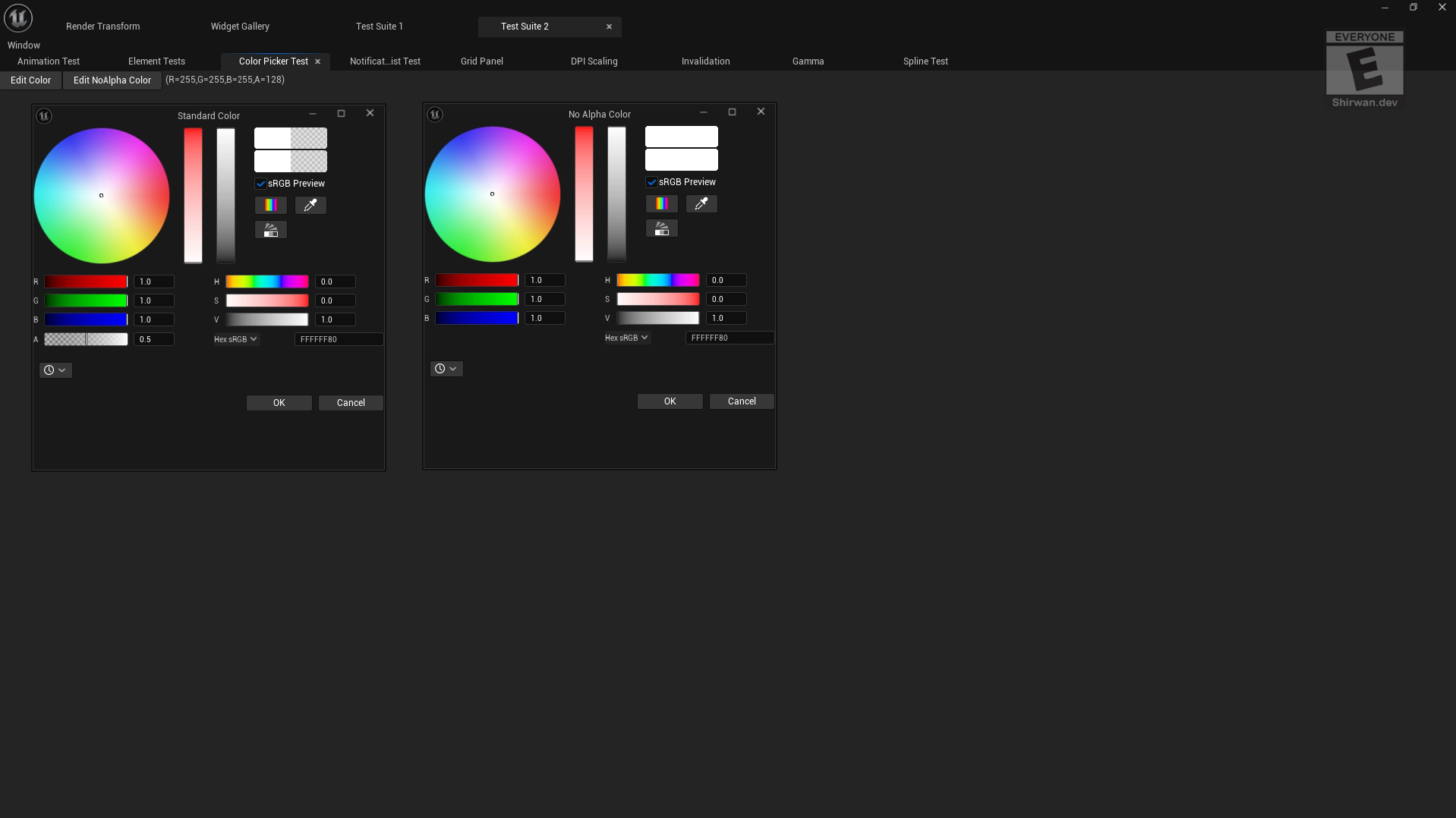
This tab shows how to implement a colour wheel with or without alpha. The code implements a colour wheel and binds the colour to a text widget on the side so you can see it when you change the colour.
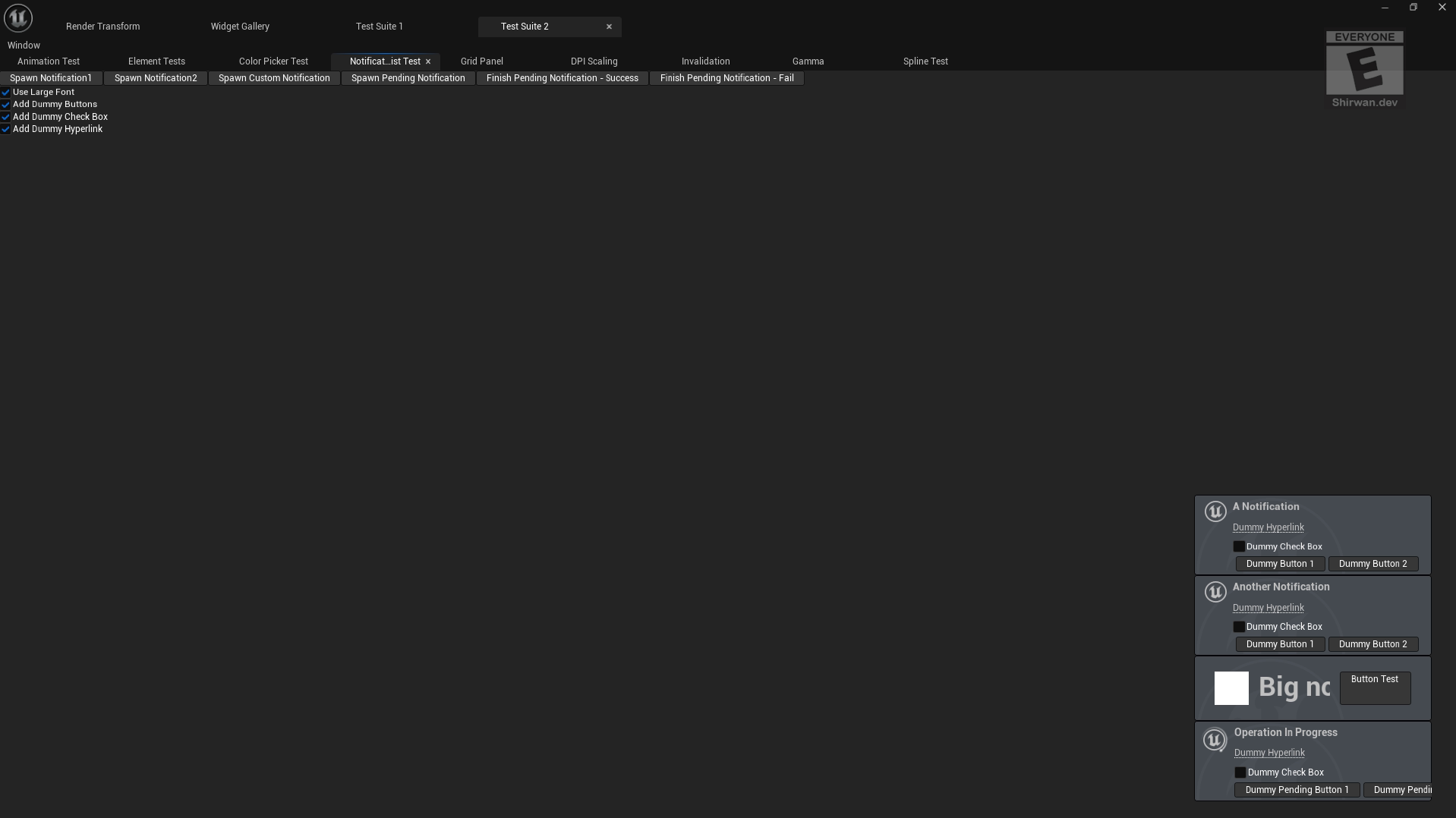
This tab allows you to test notifications, ones with custom notifications and a pending notification. The code shows you how to set them up and add custom widgets.
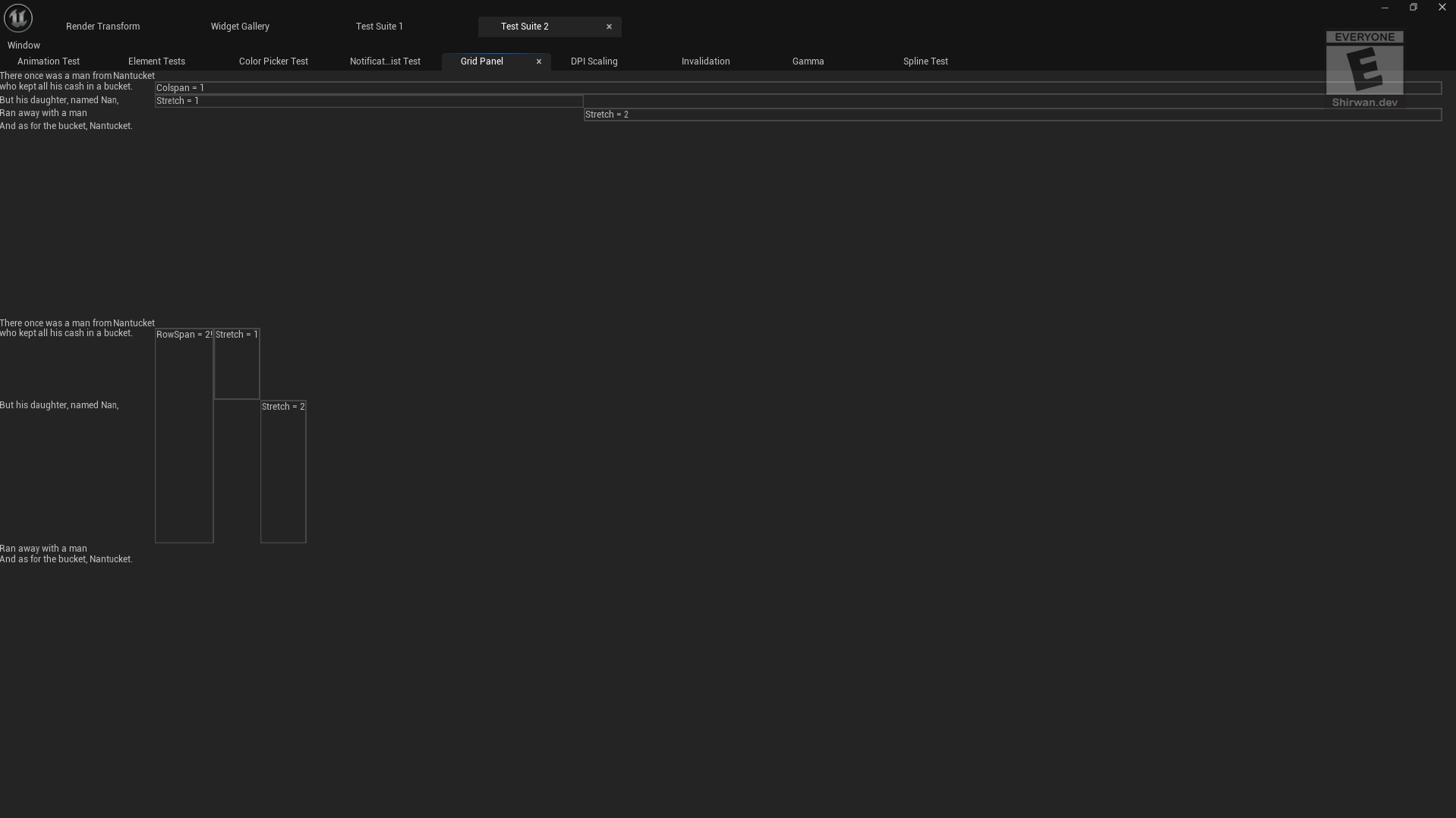
This tab showcases a grid widget. This shows different columns and rows, but also with different stretches and spans.
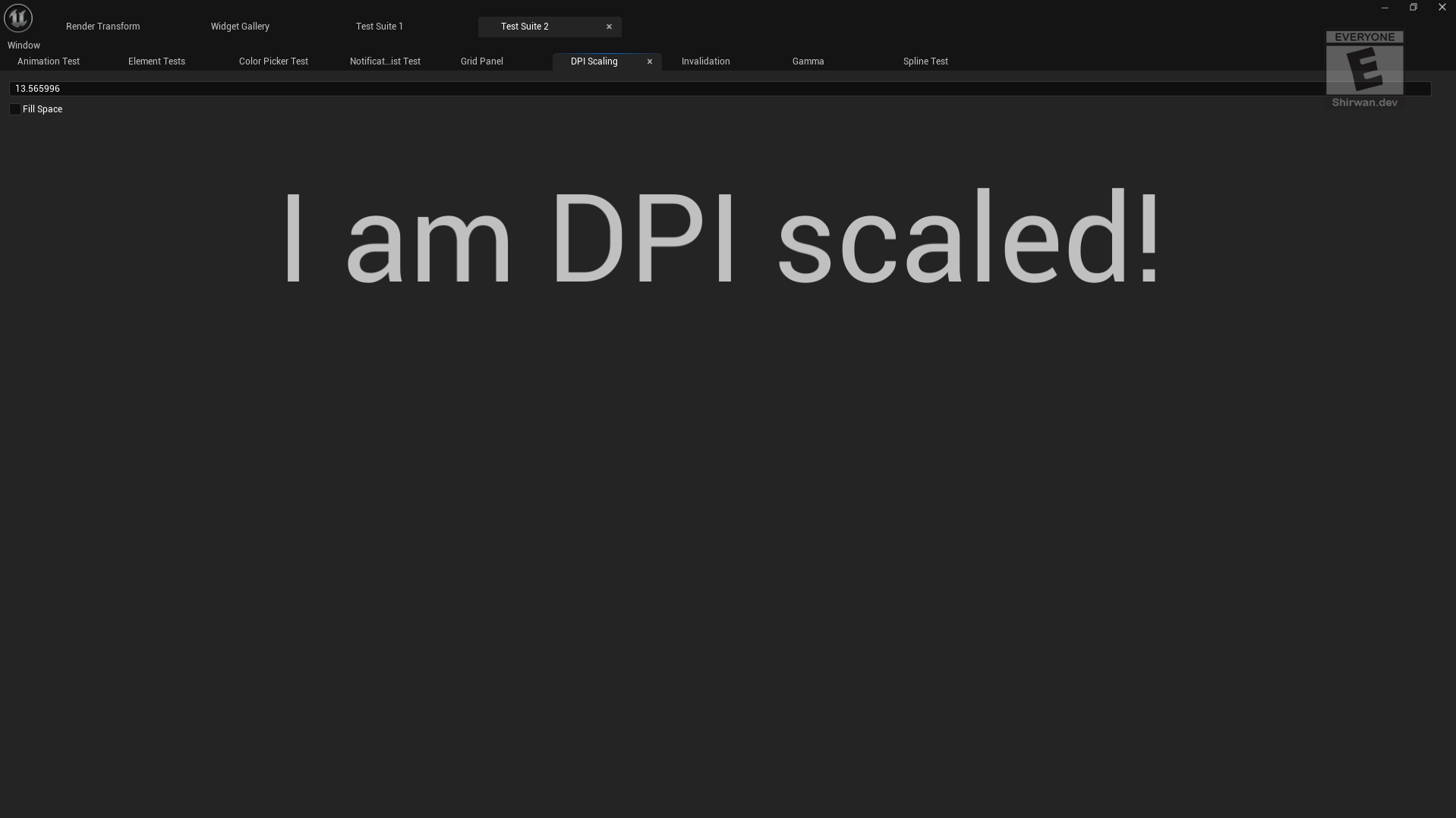
This tab gives you the ability to view DPI scaling; it is exactly how it looks.
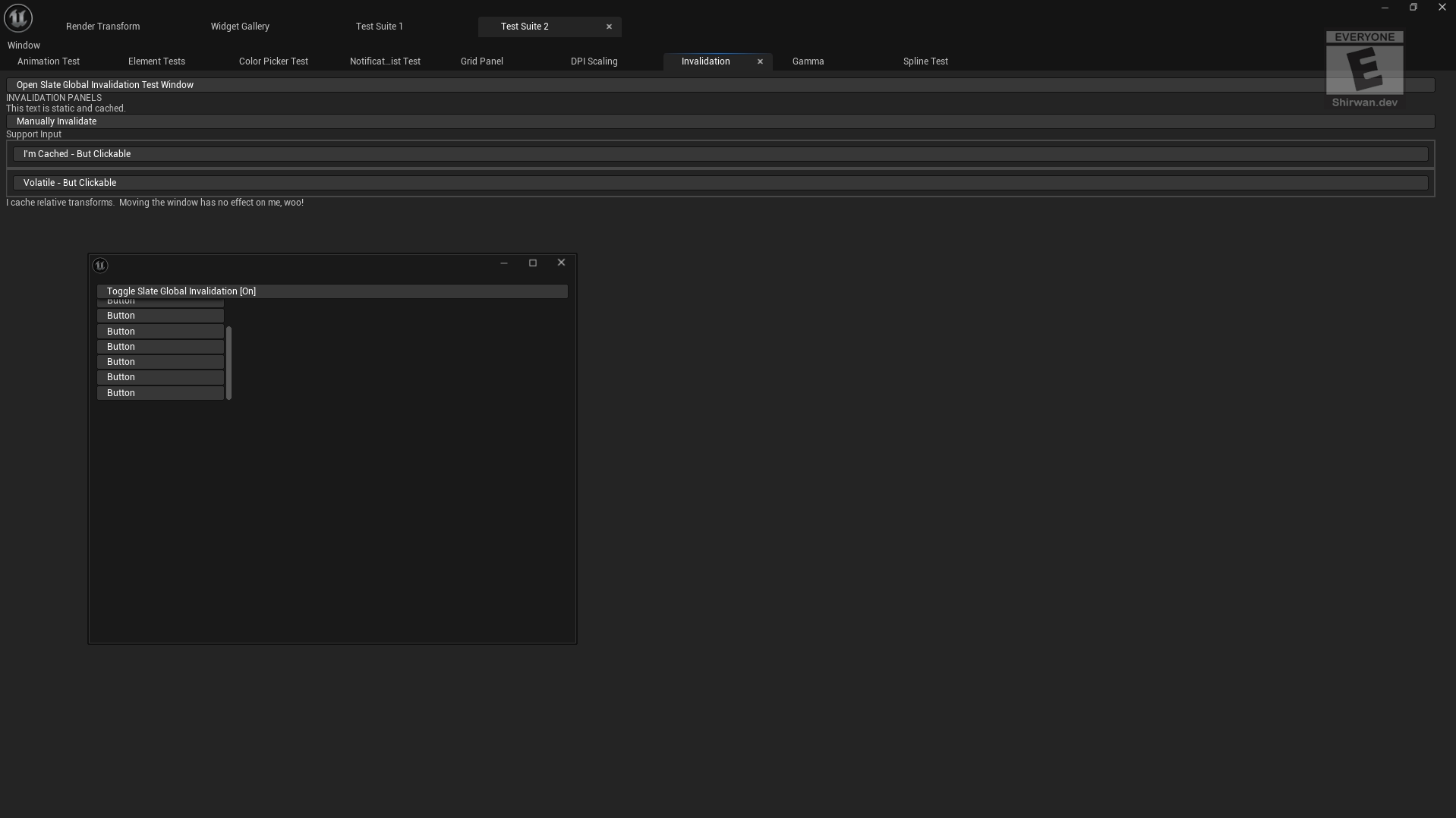
This tab allows you to test invalidation. Slate runs on invalidation to save on CPU usage, so if you make a change to a slate widget, it would be marked as invalidated. After the UI updates, only invalidate the widgets and repaint them.
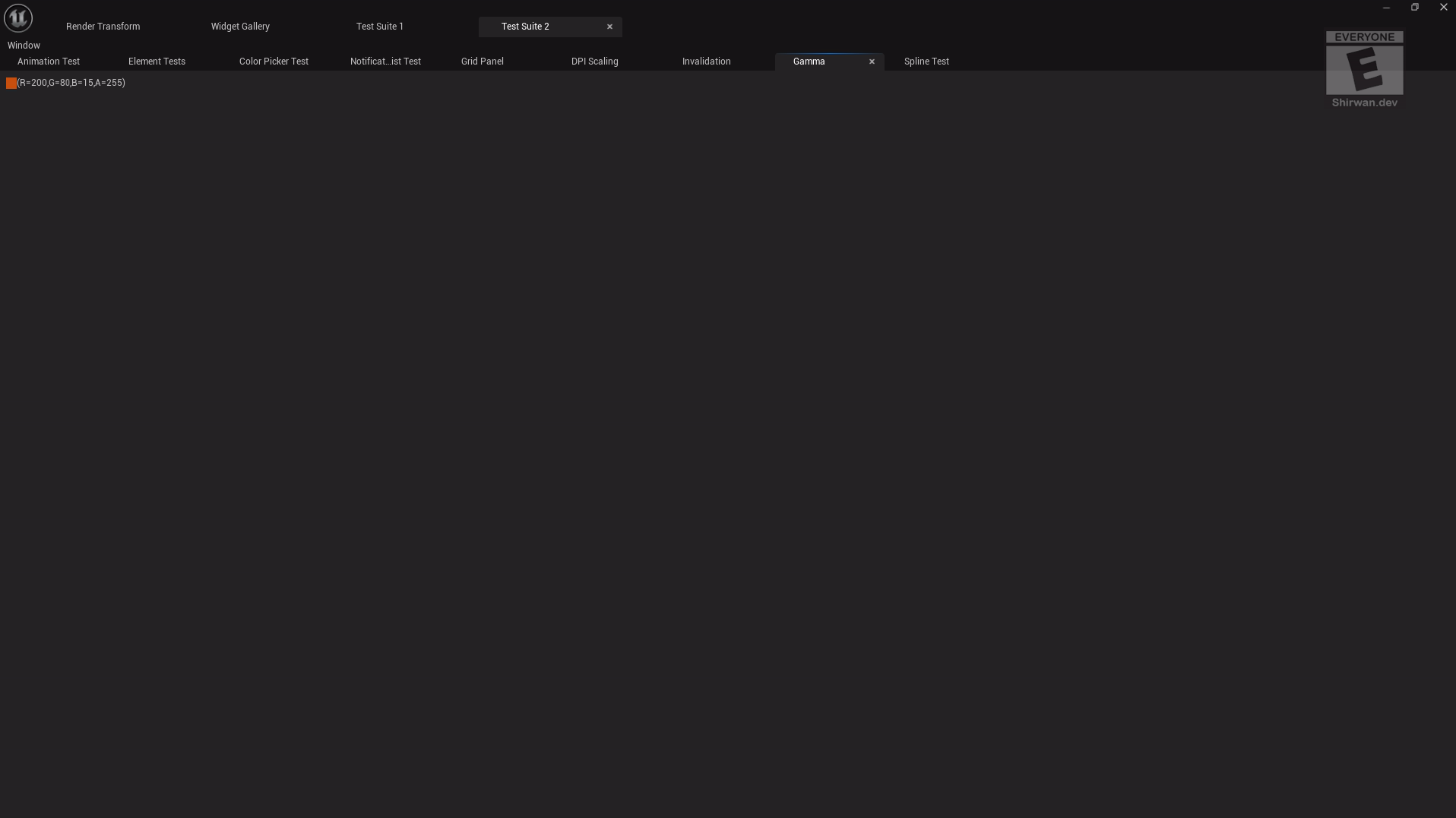
This tab is also a mystery to me. In the code, it just defines an orange colour and displays it.
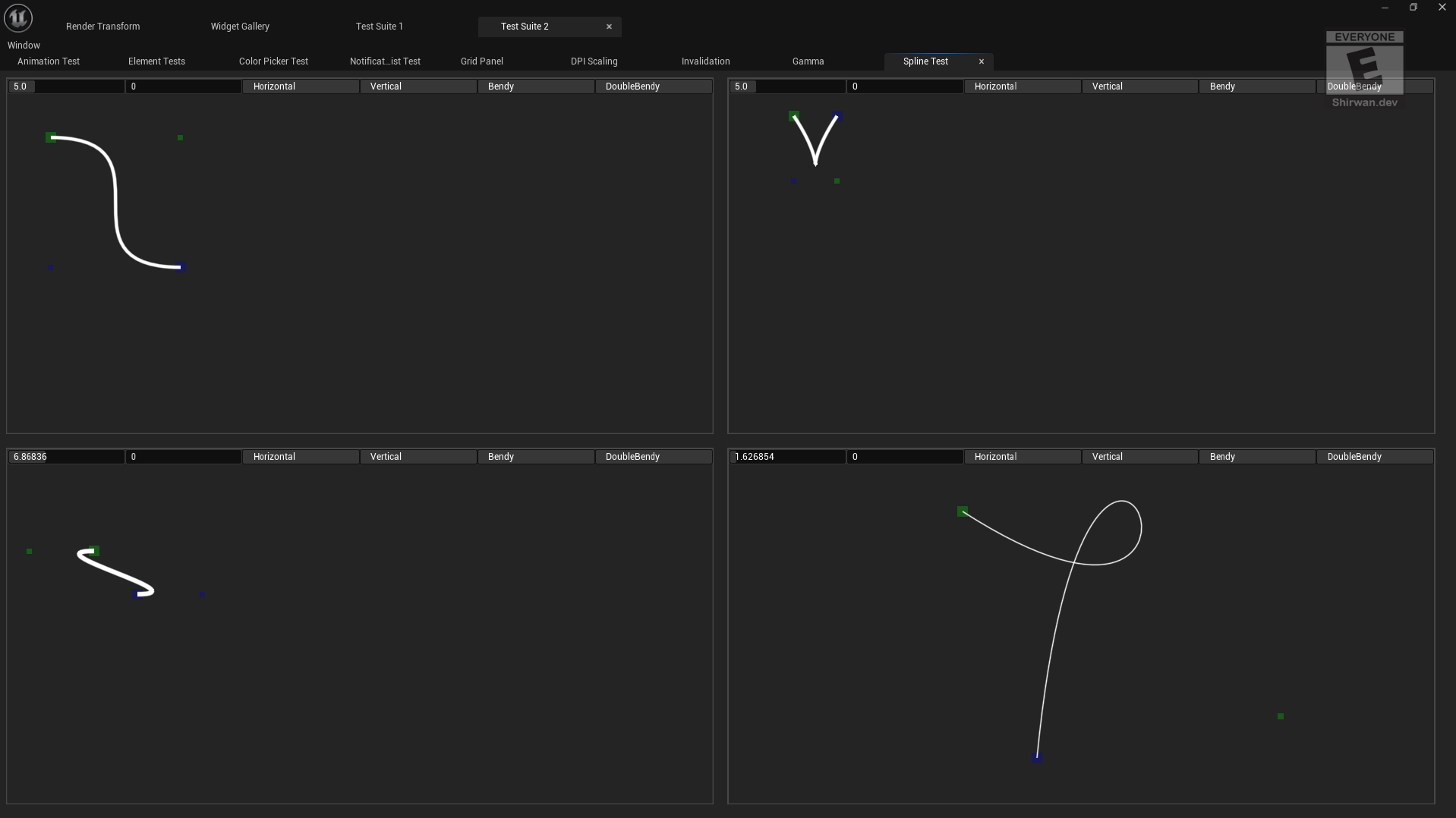
This tab is a spline test, which is a nice look into painting and drawing shapes on UI.
Extras
If you really want, you can also call these from code. Say you wanted a custom button to open them for an easier time. To do this, you can call the functions found in the slate widget suite files, such as SStarshipSuite.cpp or STestSuite.cpp. You then need to include AppFramework inside your build file. You can then use the 'restore' functions for each of the suites, for example, the test suite RestoreSlateTestSuite()
UE5/Engine/Source/Runtime/AppFramework/Private/Widgets/Testing/STestSuite.cpp Line 6234
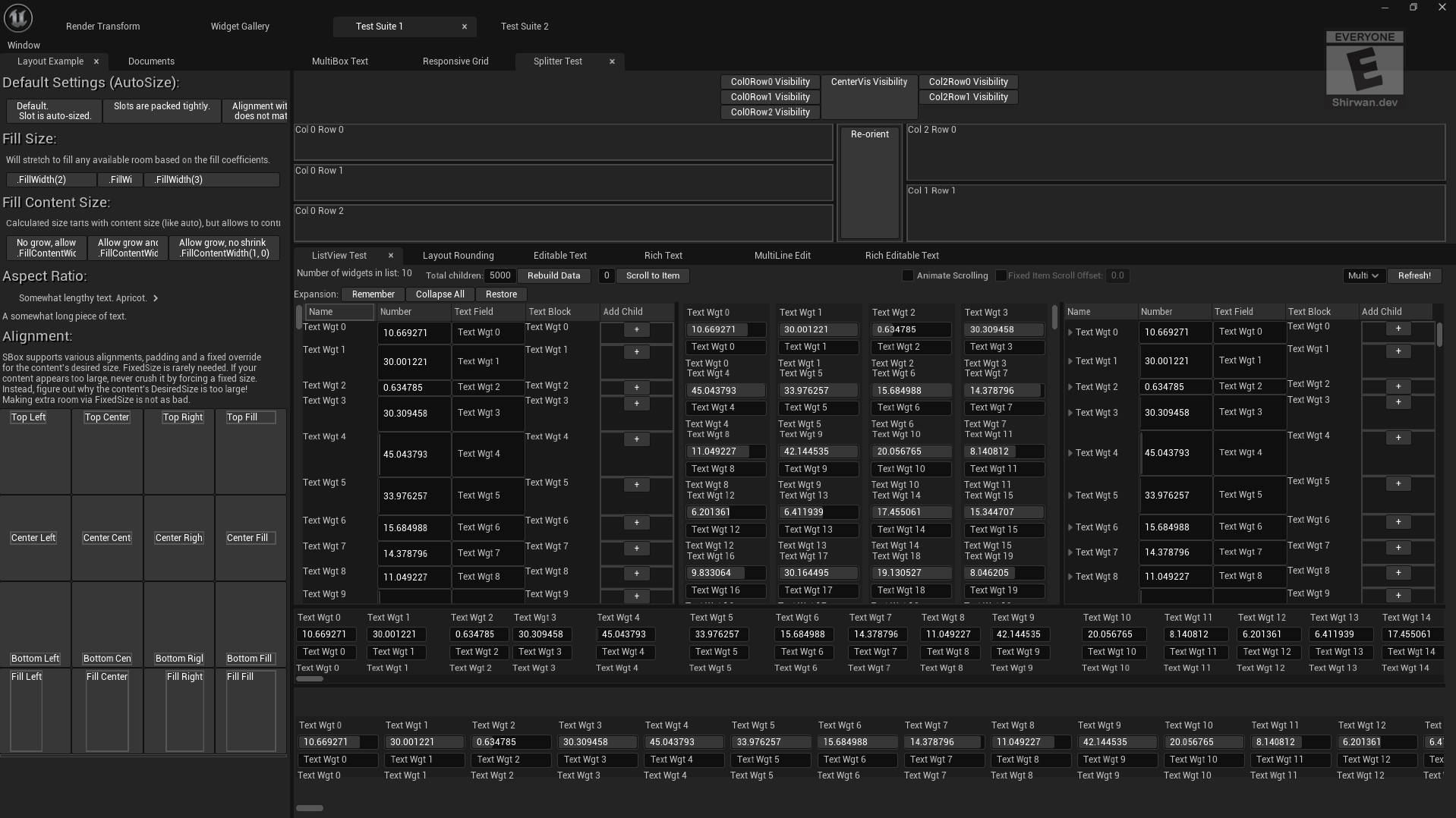
In these tabs, you can see a layout example, a splitter test and a list view test. The first two are layouts, but the list view test is more of a performance and an example of how to use lists. This is because there is another 'suite' you can spawn, that is the 'PerfSuite'. This suite only loads the list view test, so it is not really a 'suite'.
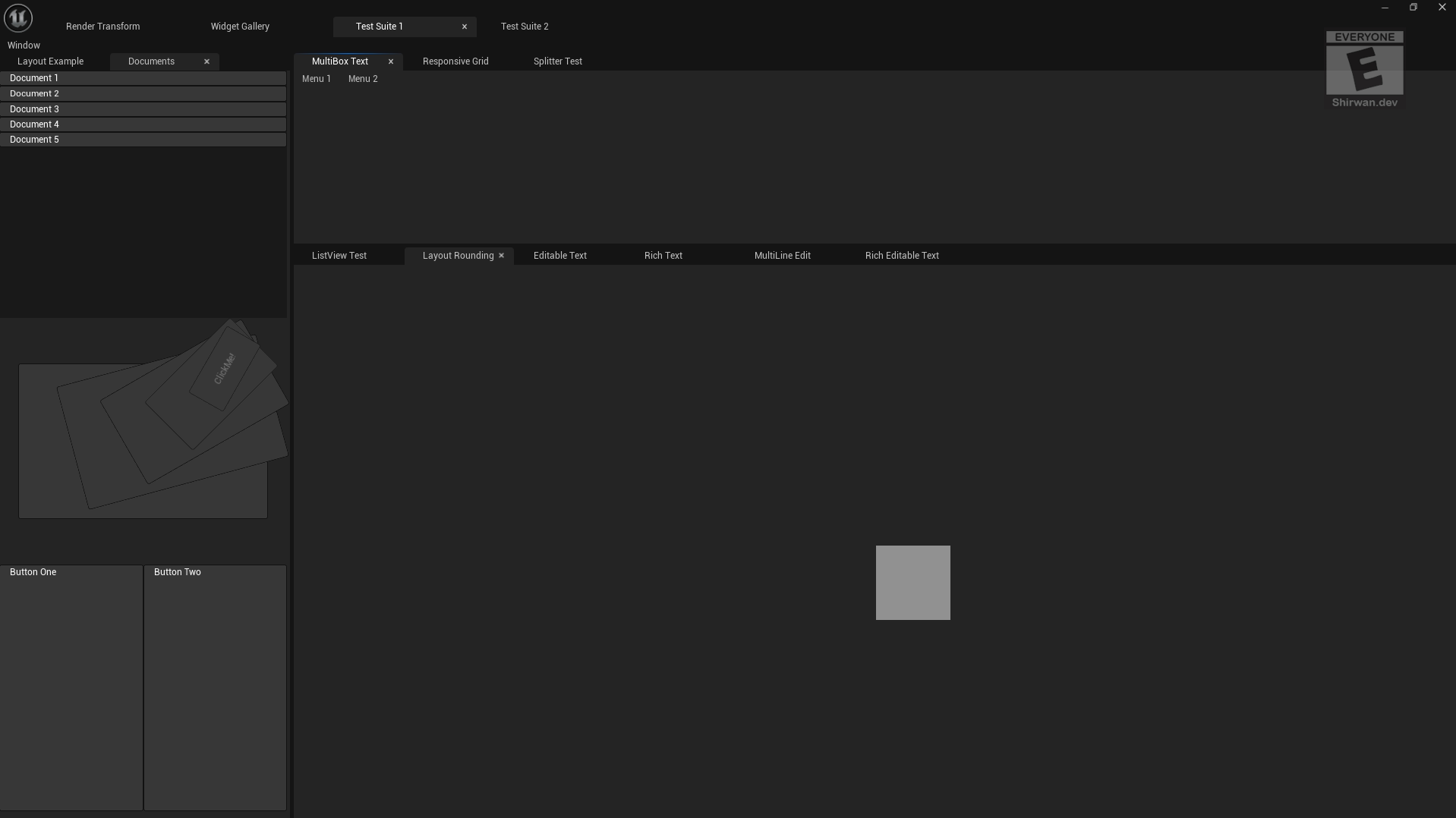
In these tabs, you can see a multi-box text which allows you to have menus when clicking on a button. The documents tab has some weird buttons that are rotated, and one that says click me? In the code, it is not bound to anything, so I have no idea. I believe that the layout rounding tab is broken, as in the code, it should make more than 1 white box.
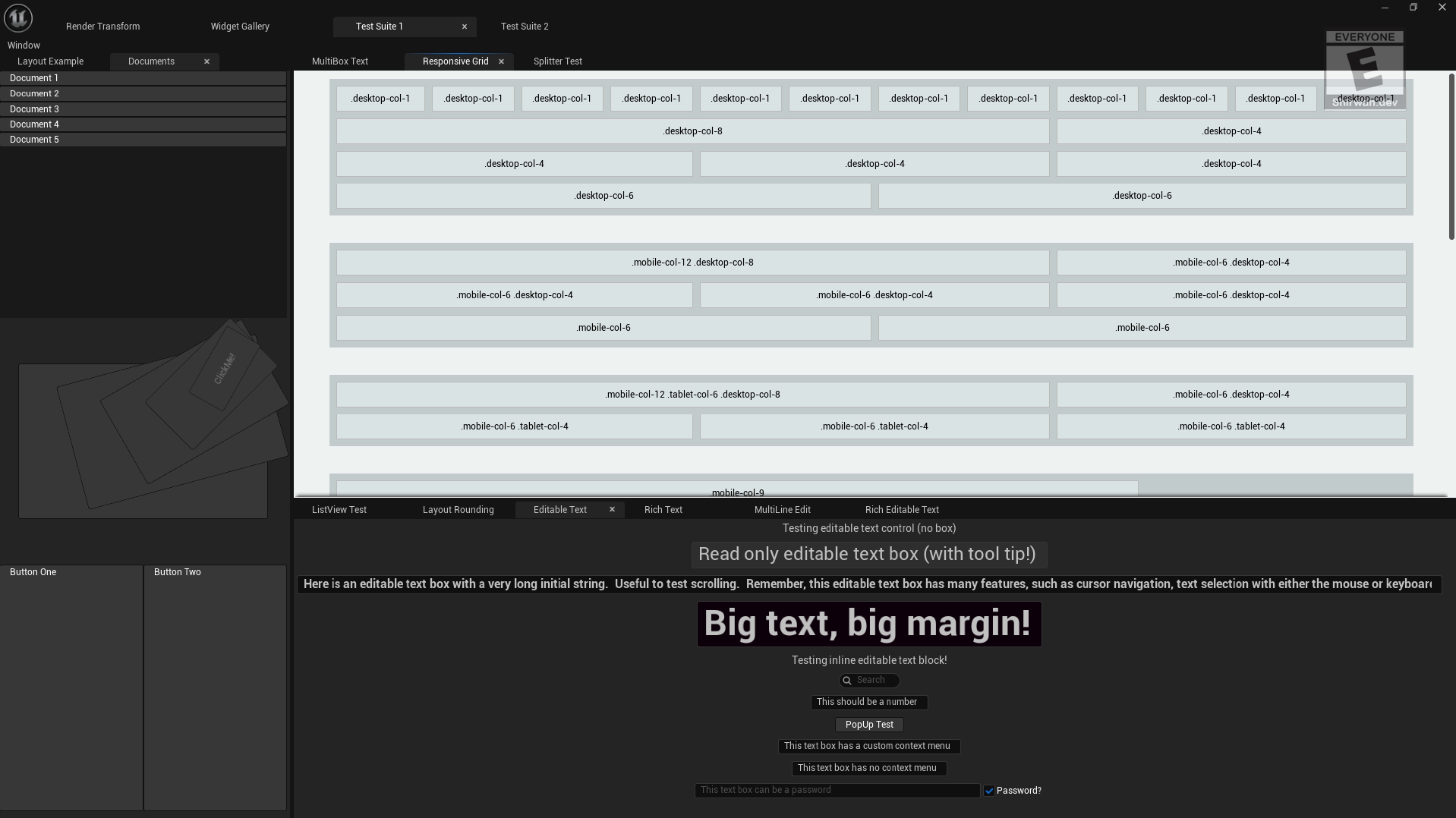
These tabs have a responsive grid similar to CSS and libraries like Bootstrap. There is also editable text, so you can add some text boxes for input fields or search bars.
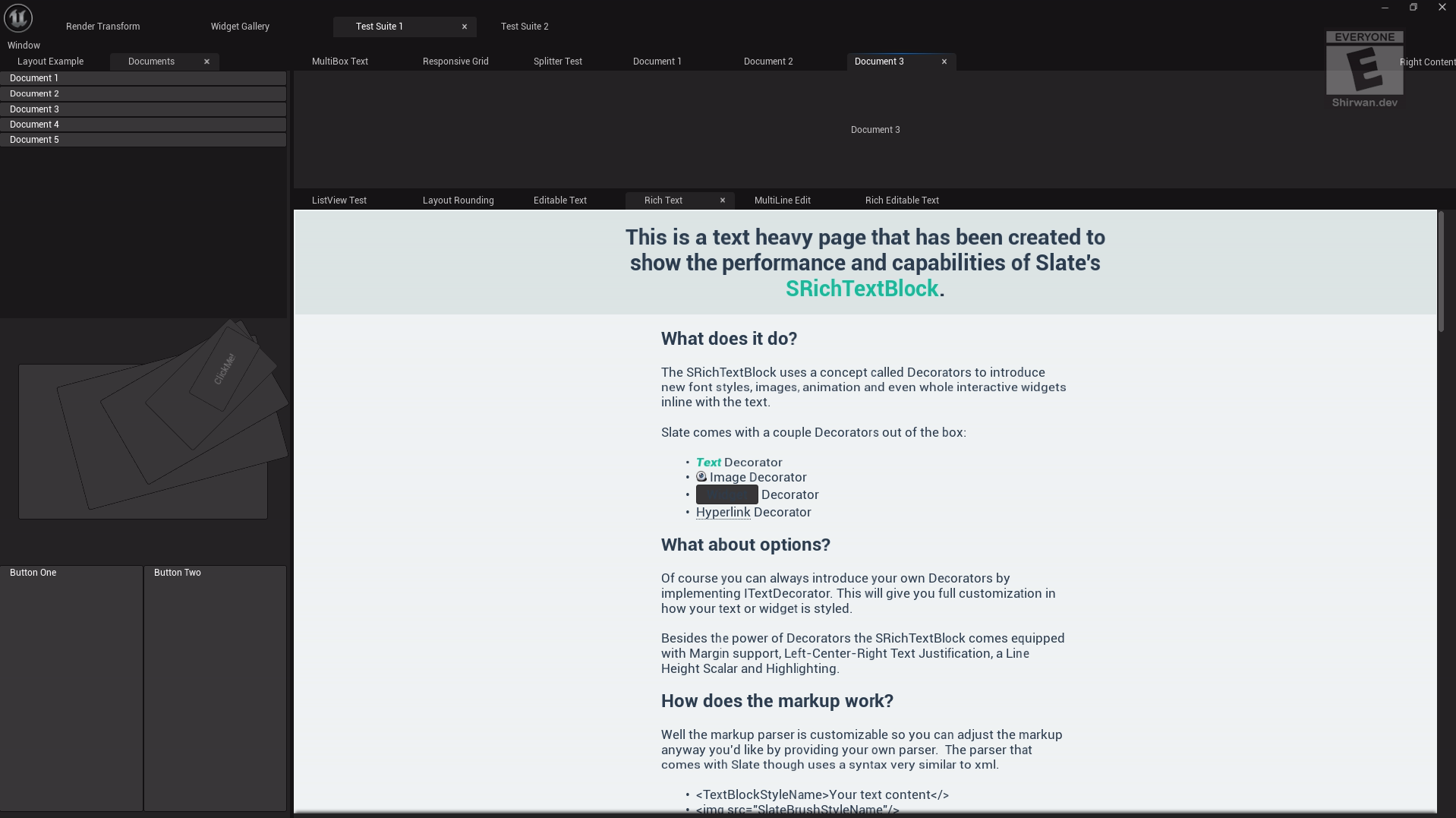
Going back to the document tab, you can click on the documents button and open new tabs. Is this likely showing you how you can dynamically add tabs to your slate widgets? Also, there are buttons one and two, but button one hides itself, and then button two brings it back. I have no idea if this was the original functionality.
This tab shows you rich text. The code shows how to use rich text in Slate and how it is made in a Slate style.
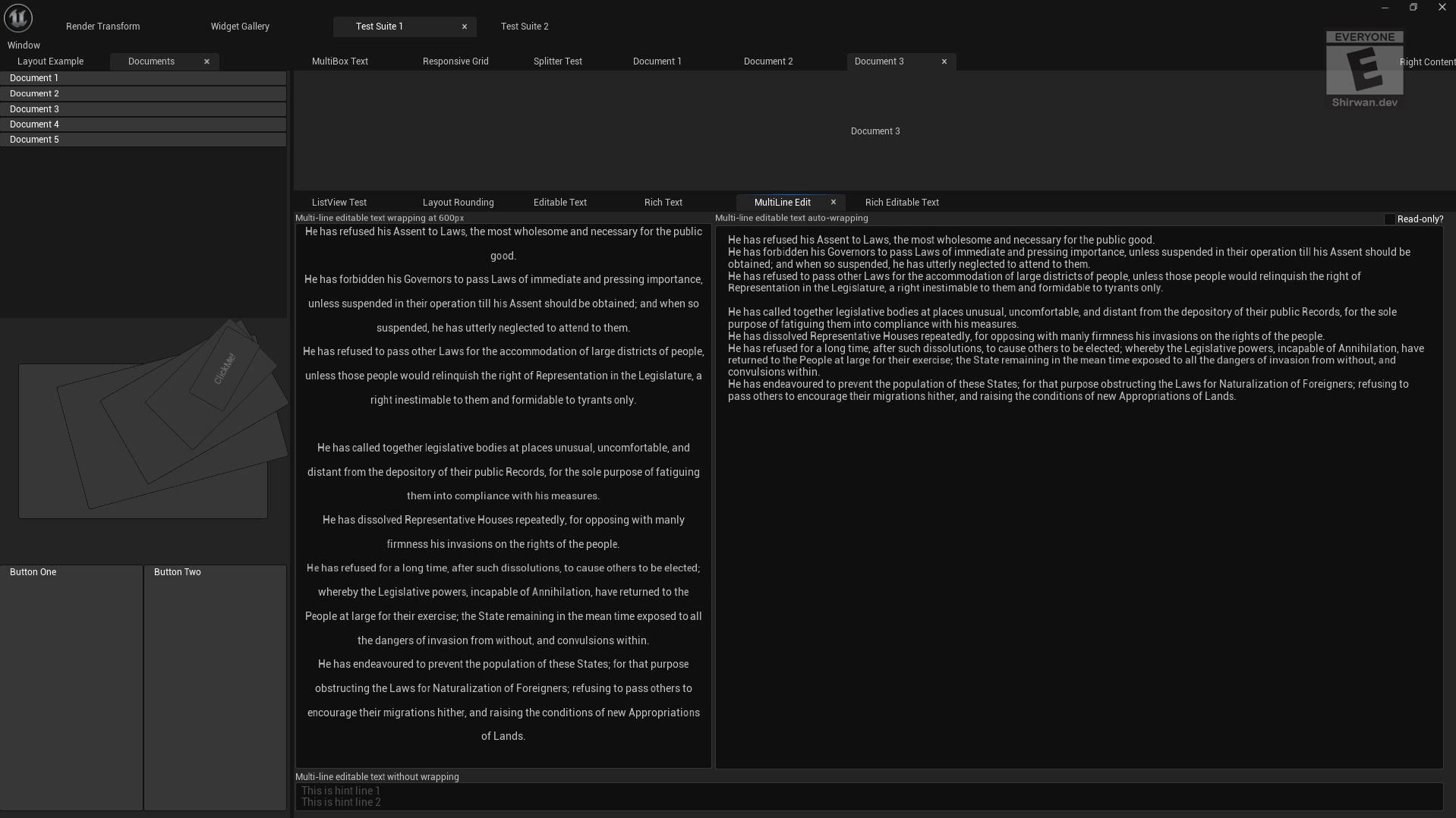
This tab shows you multi-line editable text. It also shows text wrapping with custom length and auto wrapping.
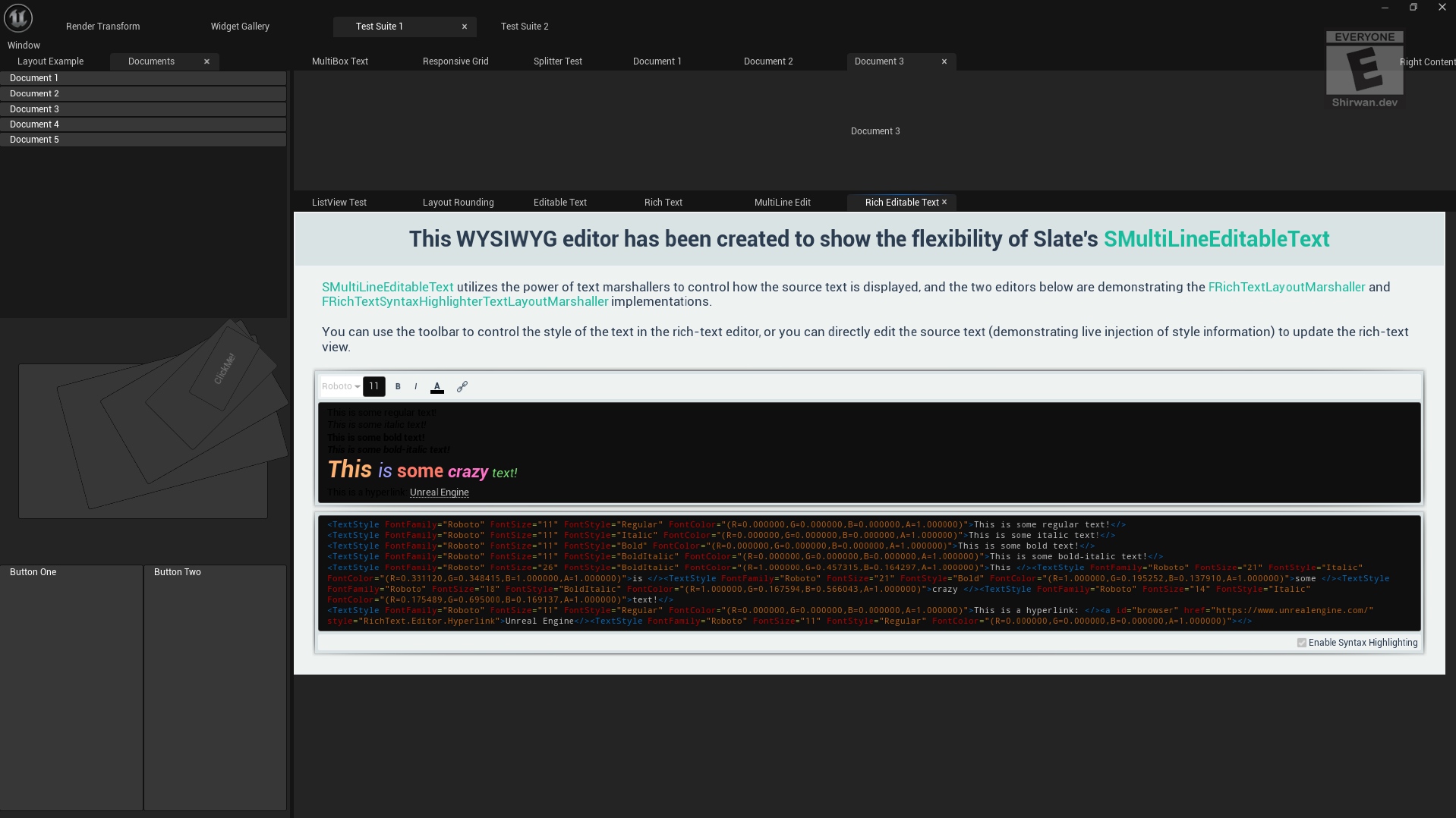
This tab shows you an editor for rich text. This is great to learn how to create a custom rich text editor.
Conclusion
I hope you found this interesting and went to explore this on your own to expand your own slate apps. I found this during my path to understand Slate and what I could do with it.
This is not an exhaustive list of things you can do with Slate, as there is so much more, such as extending custom properties and more! You can find so much more by exploring the slate files in the engine source code and knowing what types you should inherit from.
On This Page